

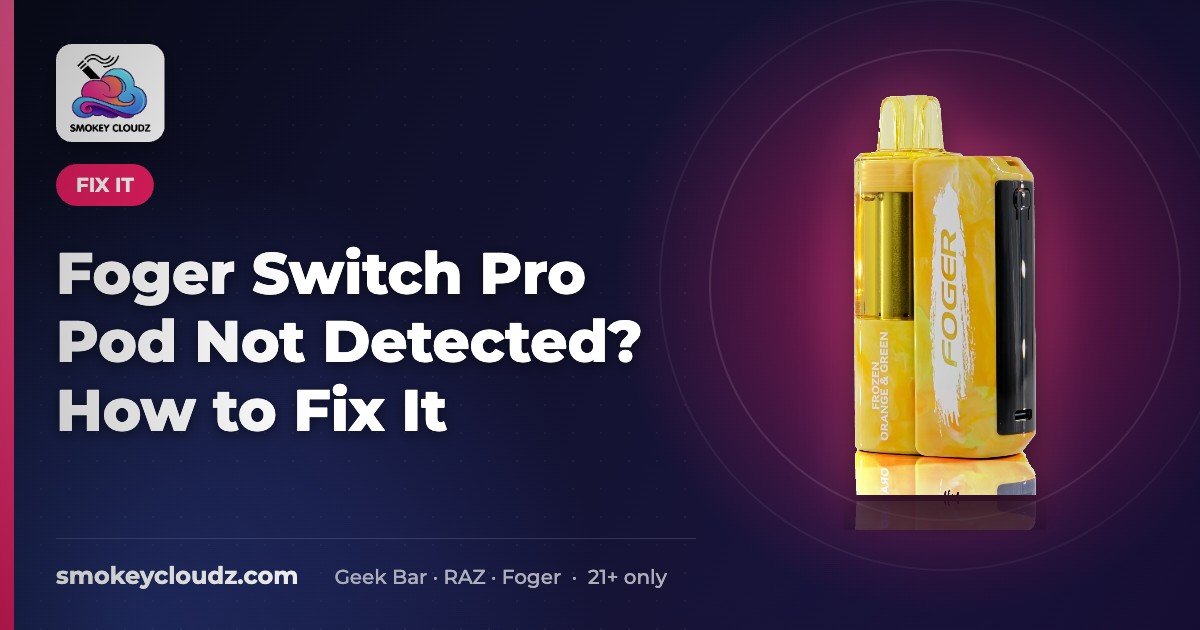
Foger Switch Pro Pod Not Detected? How to Fix It

Foger Switch Pro pod not detected? In most cases the pod isn’t fully seated or the contacts are dirty. Pull the pod off, wipe the metal contacts on the pod and battery, charge the battery, and click the pod back in firmly. If it still won’t read, reset the device or test a different pod to find which part is at fault. For adults 21+ only.
Checked Nov 14, 2026: the prices in this guide match our Foger Switch Pro product page. For adults 21+ only.
Quick fix checklist
- Reseat the pod. Remove it and press it back in until it clicks and sits flush.
- Clean the contacts. Wipe the gold contacts on the pod and battery with a dry cloth or cotton swab.
- Dry any moisture. Condensation or e-liquid on the contacts can block the connection. Let parts air-dry.
- Charge the battery. Use a USB-C cable for a while; a nearly empty battery may not read the pod.
- Reset the device. Follow our Foger reset guide.
- Swap to test. Try another pod on the battery to isolate the fault.
- Replace the faulty part. Pod or battery, based on your test.
Read the dock screen first. The display on the 850mAh battery (the dock) can point you to the fault. These readings match our Foger blinking 188 guide:
- “188” flashing: the dock can’t read a normal state, often an undetected pod, dirty contacts, a low battery or heat. Reseat, clean, charge and let it cool.
- Blank screen: the dock is fully drained or the pod isn’t connected. Charge for a few minutes, then reseat the pod.
- A number climbing while plugged in: it’s charging. Leave it on USB-C until the number stops climbing.
- Test a second pod: attach a different Switch Pro pod. If it reads, the first pod is at fault. If no pod reads, the dock is the likely cause.
We only list readings we’ve confirmed on devices we carry. For any other symbol, check the leaflet in your box.
Foger setup and fix guides
Pod errors often trace back to setup, charging or a worn part. These guides cover the next steps.
- Setting up: how to use a Foger Switch Pro and how to use a disposable vape.
- Charging: how to charge a vape and how long a vape battery lasts.
- Screen codes and resets: Foger blinking 188 and how to reset a Foger vape.
- Other Foger issues: Foger Bit not working and how to extend the lifespan of Foger vapes.
- Draw problems: why is my vape lighting up but not hitting, how to unclog a disposable vape and why is my vape leaking.
| Foger Switch Pro part | Price |
|---|---|
| Foger Switch Pro 30K Kit | $24.99 |
| Foger Switch Pro 30K Replacement Pod | $14.99 |
| Foger Switch Pro 850mAh Battery | $9.99 |
Prices as listed on Smokey Cloudz, Oct 29, 2026. For adults 21+ only.
Step-by-step fixes
Why does my Foger Switch Pro say pod not detected?
Most of the time the pod isn’t fully seated or the contacts are dirty. Remove the pod, wipe the gold contacts on the pod and battery with a dry cloth or cotton swab, and click it back in firmly until it sits flush. New users should also check our how to use a Foger Switch Pro guide for correct pod fitting.
How do I clean the Foger Switch Pro pod contacts?
Separate the pod from the battery, then gently wipe both sets of metal contacts with a dry lint-free cloth or cotton swab. If there’s sticky residue, use a barely damp swab, then let everything air-dry fully before reconnecting. Don’t use sharp tools; scratched contacts can make detection worse.
Can a low battery cause a pod not detected error?
Yes. If the battery is nearly empty it may not read the pod correctly. Charge with a USB-C cable for a while, then reseat the pod and try again. If the screen shows unusual codes while charging, see Foger vape blinking 188.
Does resetting the Foger Switch Pro fix pod detection?
Often. A reset clears temporary glitches. Remove the pod, let the device sit a minute, reconnect, and follow our reset guide if the error stays.
How do I know if the pod or the battery is the problem?
Swap parts if you can. If a different pod works on your battery, the original pod is faulty. If no pod is detected on your battery, the battery is the likely issue.
When should I replace the Foger Switch Pro pod or battery?
Replace the pod if it’s empty, leaking, or still not detected after cleaning and reseating. Replace the 850mAh battery if no pod reads after cleaning, charging, and a reset. Shop a Foger Switch Pro replacement pod, the Foger Switch Pro 850mAh battery, or a complete Foger Switch Pro kit.
Where can I find more Foger Switch Pro setup and fix guides?
See the Foger setup and fix guides section above. It links our Foger Switch Pro how-to, charging and battery guides, the blinking 188 and reset guides, and fixes for leaking, clogs and no-hit problems.
What does the Foger Switch Pro dock screen mean when a pod isn’t detected?
A flashing 188 means the dock can’t read a normal state, and a blank screen means the dock is drained or the pod isn’t connected. To tell pod from dock, try a second Switch Pro pod. If it reads, replace the old pod. If no pod reads, the dock is the likely cause. See Foger vape blinking 188 for every screen reading we cover.
Keep it from happening again
- Store the device upright and away from heat.
- Wipe the contacts each time you change pods.
- Don’t force or twist the pod when attaching it.
More Foger help
Picking new flavors? See the best Foger Switch Pro flavors and the Foger Switch Pro buying guide, browse the full Foger vape collection, or explore all vape guides.
Products are for adults 21+ only. Not for use by minors.