
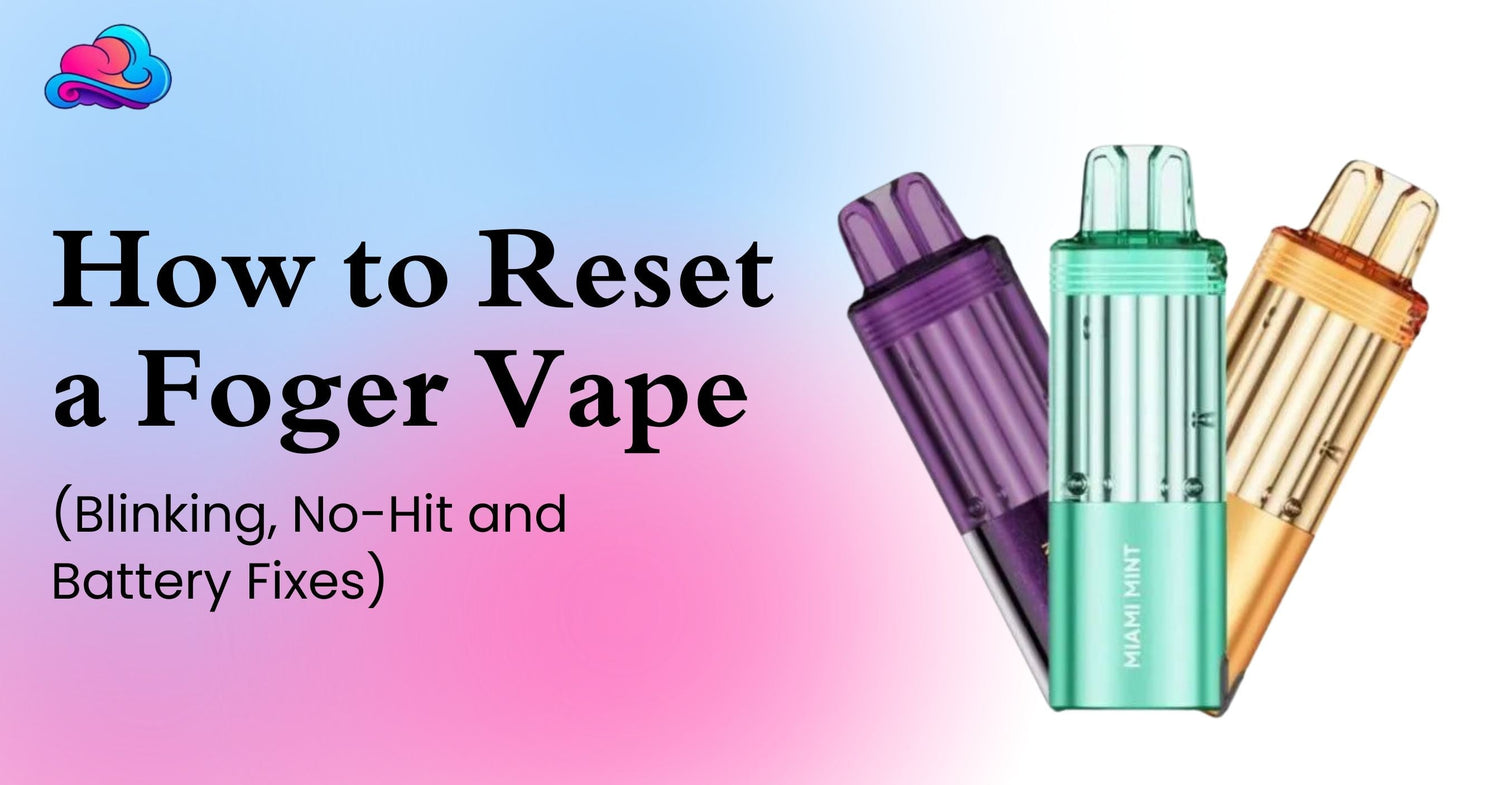
A Foger device that blinks, stops producing vapor, or freezes on the same screen can be frustrating. Many adult users search how to reset foger vape because they expect a hidden button or factory reset menu. Current Foger guidance states that the Bit 35K and Switch Pro 30K do not have a manual reset button. The practical reset is a short power cycle, followed by model specific battery, airflow, pod, and liquid checks.
The first step is knowing which Foger you have. The Bit 35K is a sealed, all in one disposable with direct USB C charging. The Switch Pro 30K uses a reusable battery dock and a replaceable pod. The same reset process does not fit both products because their power and pod connections are different.
A reset may wake a frozen display or clear a temporary board state. It cannot refill an empty device, repair a burnt coil, straighten damaged contacts, or restore a worn battery. When a Foger not responding problem comes from physical damage, replacement or store support is the better path.
This article is for adults aged 21 and above. Foger products may contain nicotine, which is addictive. Keep the device away from children, pets, water, direct heat, and anyone below the legal buying age.
A Direct Reset Answer
The short answer is that how to reset foger vape usually means performing a brief Foger power cycle. For the Bit 35K, connect the device to a suitable USB C power source for about 30 seconds, unplug it, then take a normal draw. Foger instructions describe this as the hardware reset because no separate reset button is built into the device.
For the Switch Pro 30K, remove the pod, let the dock sit unplugged for about 30 seconds, connect it to power to wake the board, then attach the pod again with straight pressure. This process may clear a temporary screen or pod reading fault.
A Foger charging reset is not a factory reset. It does not erase the true battery state, add liquid, or make a worn coil new again. The reset only gives the board a fresh power state so it can read the battery and pod again.
Can Every Foger Vape Be Reset?
No. Every Foger can receive basic troubleshooting, but not every fault can be reset. The Bit 35K and Switch Pro 30K have no user reset menu, reset pin, or button combination listed in the current instructions.
A temporary frozen display may respond to a power cycle. A low battery may respond to charging. A Switch Pro pod that is not seated well may work after the contacts are checked and the pod is attached again.
An empty liquid reading, a lasting burnt taste, a swollen body, broken charging port, badly leaking pod, or damaged contact pin is different. Those are end of life or hardware conditions, not software states.
The current Foger vape collection can support a model check before troubleshooting. The product name matters because a Bit 35K and a Switch Pro kit need different checks.
First Checks Before Any Reset
Start with the outside of the device. Remove any silicone mouthpiece cap or packaging seal. A covered mouthpiece can make a new unit appear dead even when the battery and coil are working.
Next, inspect the airflow control. A fully closed slider can cause a no hit complaint. Move it toward the middle, then take a steady draw rather than a hard pull. The current Bit 35K instructions list the mouthpiece cap, battery level, liquid level, and airflow position among the first checks for a device that will not hit.
Look at the display without pressing random buttons. Check battery percentage, liquid percentage, puff count, and active mode when those readings are available. A 0 percent liquid reading means a sealed Bit 35K is finished and should be replaced rather than opened or refilled.
These checks should come before the Foger reset steps. A reset cannot solve a cap that remains in place, a closed airflow path, or an empty liquid supply.
Foger Reset Steps for a Frozen Device
Use this order when the screen freezes or the device suddenly stops reacting.
-
Stop drawing and place the device on a dry, hard surface.
-
Inspect the mouthpiece, airflow area, charging port, and outer body for liquid, lint, or visible damage.
-
Check the display for battery and liquid readings.
-
If the device is a Switch Pro, remove the pod with straight upward pressure. Do not twist it.
-
Let the device rest without power for about 30 seconds.
-
Connect the correct charging cable for about 30 seconds to wake the board.
-
Unplug the device. For a Switch Pro, attach the pod again in a straight position.
-
Take 1 normal draw and check whether the display and vapor return.
These actions form a short power cycle. They should not include opening the body, pressing metal tools into the port, adding bottled liquid, or attaching exposed wires. Current Foger instructions state that both main models lack a manual reset button and use charging as the hardware reset method.
Foger Charging Reset for the Bit 35K
The Bit 35K uses a direct USB C port. Smokey Cloudz lists it as a sealed rechargeable disposable with up to 35,000 puffs and a 20mL liquid capacity. It is not reusable after the liquid or device cycle ends.
For a Foger charging reset, place the Bit 35K on a hard, dry surface. Connect a suitable USB C cable and watch for a charging icon or percentage on the display. Leave it connected briefly if the goal is only a power cycle, or continue until charged when the battery is low.
Foger charging guidance recommends a 5V and 1A power source and warns against strong fast charging setups that add battery heat. The Bit 35K display should show charging progress, and the device should be unplugged when it reaches full charge.
After unplugging, wait a few seconds and take a normal draw. If the Foger not responding condition remains while battery and liquid readings look normal, the problem may involve airflow, the internal coil, or hardware rather than a frozen board.
The Foger Bit 35K product page can be used to confirm the model, USB C charging support, sealed format, and listed product details before any reset attempt.
Foger Power Cycle for the Switch Pro
The Switch Pro uses a pod and a battery dock. The connection between those parts matters because the dock must read the pod before normal operation can continue. A weak connection can appear as a frozen reading, no hit, or 188 display.
Begin the Foger power cycle by pulling the pod straight off the dock. Let the dock sit unplugged for around 30 seconds. Connect the correct cable long enough to wake the display, then unplug it and attach the pod again with straight pressure.
Inspect the flat pod contact and dock pins before attaching the parts. A dry cotton swab can remove lint or dry residue. Do not pour liquid into the dock cavity, and do not force the spring contacts with metal tools.
If the dock battery is very low, charge it before testing again. A short charging connection may wake the board, but a fuller charge may be needed before the pod reading circuit works normally.
Should a Foger Showing 188 Be Reset?
A dedicated Foger 188 support page identifies 188 as a Switch Pro 30K pod reading error. It states that the code can appear when the pod contact is dirty, the pod is not seated straight, the pod has reached the end of its life, the dock battery is very low, or a dock pin is damaged.
The right response is not repeated button pressing. Remove the pod, inspect both contact areas, clean them carefully with a dry swab, attach the pod again, and charge the dock when its battery is low. Testing another compatible pod can show whether the fault follows the pod or remains with the dock.
The dedicated 188 page says the Bit 35K does not use the same fallback code system. Available Foger instruction pages are not fully consistent on this point, so a person who believes a Bit 35K shows 188 should confirm the exact model and contact the seller rather than opening the sealed body.
If 188 remains after clean contacts, a charged dock, a firm pod connection, and a known working pod, the dock may have a hardware fault. That is a replacement or warranty matter, not another reset attempt.
Can Charging Wake a Frozen Display?
Sometimes. Charging can provide the board with a fresh power state, which is the basis of the listed hardware reset. A frozen screen caused by a temporary low power state may return after a short connection and unplug cycle.
Charging cannot solve every Foger not responding case. A broken port, damaged cable, empty pod, burnt coil, leaking body, or damaged contact pin may leave the device inactive even after the battery receives power.
Try another suitable cable or low power USB source when the screen shows no charging sign. Do not keep reconnecting a device that becomes unusually hot, smells burnt, leaks, or shows swelling.
The charging connection should be brief when used only as a reset. Normal charging can continue when the battery reading is low, but the device should remain on a hard surface and be unplugged after charging.
No Hit After Charging
A full battery does not prove that the airflow and coil are working. When a charged Bit 35K gives no vapor, inspect the mouthpiece cap, airflow slider, liquid reading, and outer condition.
Take 1 steady draw. Hard pulling can make the problem feel worse and may pull liquid toward the mouthpiece. If the display reacts but no vapor appears, the coil or airflow path may be at fault.
On the Switch Pro, remove and attach the pod again. Clean dry contacts and a straight magnetic connection matter. If another compatible pod works, the first pod is the likely problem.
If a Foger not responding issue continues after these checks, stop repeating the reset. Constant charging and repeated draws will not repair a failed coil or damaged board.
Can a Reset Erase Battery or Liquid Readings?
A power cycle should not refill the liquid reading or restore lost battery capacity. Battery and liquid values come from the device sensors and current condition.
The Foger instructions state that the displayed puff count is a running total and resets only with hardware replacement. A normal Foger charging reset should not turn a used device into a new unit or erase its actual use history.
A temporary display fault may cause a reading to refresh after charging or reseating a pod. That is different from adding liquid or increasing battery health.
If the screen returns with a strange value that does not match the device condition, contact the seller. Do not open the product to reach the display board or battery.
A Real Troubleshooting Example
Consider an adult user named Ryan with a Switch Pro kit. The display suddenly shows 188 and the device gives no vapor. Ryan first thinks how to reset foger vape means holding the side button for several seconds.
Instead, he checks the model and follows the Foger reset steps. He removes the pod, checks the dry contact areas, wipes away pocket lint, waits 30 seconds, and connects the dock briefly to power. He then attaches the pod again in a straight position.
The screen returns to its normal pod reading and the device works. In this case, the issue was a poor pod connection rather than a dead battery.
If the same code had remained with another pod and a charged dock, Ryan would need store support. Repeating the process or opening the dock would not be a sensible next step.
Blinking Patterns Need Model Context
A blinking display can signal charging activity, a low battery, a connection fault, or a protection response. The meaning depends on the model and the screen symbol.
On the Switch Pro, the 188 code relates to the pod reading. A green charging indicator can be normal while connected to power. A red battery warning may point to low power.
On the Bit 35K, the screen reports battery and liquid information. A weak or empty battery can make the device stop producing vapor until it is charged.
Do not treat every blink as a reset request. Read the battery and liquid information first, then match the response to the exact device.
Errors That Make the Problem Worse
Opening a sealed Foger body is a major error. The battery and liquid system are not built for home repair. Opening the device can cause leaks, damaged wiring, or battery stress.
Another error is using a very strong fast charger because the screen remains dark. More power is not the same as a better reset. Current charging guidance points toward a low power 5V and 1A source.
Wet cleaning inside the charging port or Switch Pro dock is another poor step. Keep liquid away from electrical contacts. A dry swab is the safer option for the dock pins.
The final error is repeating the reset process many times after clear signs of failure. A device that stays hot, auto fires, leaks badly, smells burnt, or has visible damage should be removed from use.
Better Device Care After a Reset
Keep the charging port and pod contacts dry. Store the device upright in a cool area and protect it from direct sun, water, and pocket lint.
Use steady draws with short pauses. This reduces repeated heat around the coil. Keep the airflow slider partly open so the device can detect the draw without extreme suction.
The article on vape smell remaining on clothes and indoor surfaces covers odor and residue in shared spaces. Device care and room care are different topics, but both matter during regular adult use.
Keep the original packaging and order details. They can support a store claim when a new product has a frozen display, charging fault, or no hit problem.
Replacement Signs That a Reset Cannot Fix
Replace a sealed Bit 35K when its liquid reading reaches 0 percent, the coil has a lasting burnt taste, the body is damaged, or the device no longer responds after safe charging and airflow checks. Current Foger instructions state that the Bit 35K is sealed and non refillable.
For the Switch Pro, replace the pod when the pod is empty or when a second pod test shows that the first pod is faulty. Replace or claim support for the dock when a known working pod fails after contact checks and proper charging.
Puff ratings are estimates, not exact personal totals. Adults comparing device life can read the Loon Air Plus puff count notes for wider context on why real use can differ from a package number.
A reset should not be used to push a product beyond clear end of life signs. Safe replacement is better than forcing a damaged device to continue.
Product Status and Buying Checks
A working reset does not confirm product approval, authenticity, or regulatory status. Those are separate buying checks.
The article on whether Loon vapes are FDA approved covers approval language and buyer questions. The same care with product wording should be used when reviewing any vape listing.
Adults comparing another disposable category can review the Geek Bar vape collection. A different brand should not be used as a repair part or charger source for a Foger device.
The goal is to match the correct model, cable, pod, and store record. Mixing parts from unrelated devices can create another fault.
Buying a Replacement Through Delivery
A dead or damaged device may make a fast delivery option feel urgent. Delivery rules still apply to nicotine products.
The article covering DoorDash vape availability and ID checks gives context on platform limits, adult identification, and local rules.
Do not keep charging or using a damaged Foger while waiting for another device. Place it away from heat and combustible items, and follow local battery disposal rules.
Urgency should not lead to buying the wrong item. Confirm whether the order is a Bit 35K, Switch Pro kit, or replacement pod.
Connection With the Main Foger Strategy
The question how to reset foger vape belongs inside a complete Foger device use and troubleshooting guide. Resetting is only 1 part of device care.
A wider pillar article can cover first use, charging, screen readings, airflow, pod connection, puff ratings, flavor selection, storage, and replacement timing.
This article supports that main topic by separating temporary power faults from empty liquid, worn coils, contact problems, and damaged hardware.
The same process can be used later when a display freezes or the device gives no hit. Start with the model, then inspect battery, liquid, airflow, pod fit, and physical condition.
When Store Support Is the Better Step
Contact Smokey Cloudz when a new device arrives with a dead display, repeated 188 code, broken port, leaking body, or no vapor after the safe checks above. Keep the box, order number, and a short video of the fault.
The Foger Bit 35K listing can confirm whether the product matches the ordered model. The wider collection can support model comparison before a replacement order.
Do not remove panels or puncture the body for a warranty check. Store support needs the device in its original condition as much as possible.
The supplied Google Android reset page was not used because a phone factory reset does not support Foger vape troubleshooting.
Conclusion
The answer to how to reset foger vape is a model based power check, not a hidden factory reset. The Bit 35K and Switch Pro 30K do not list a manual reset button. A short charging connection, unplug cycle, and normal draw can clear some temporary faults.
For a Switch Pro showing 188, inspect and clean the dry pod contacts, attach the pod straight, charge the dock, and test another compatible pod when available. A lasting 188 code can point to pod or dock hardware.
A reset cannot fix empty liquid, a burnt coil, damaged pins, a broken charging port, swelling, heavy leaks, or auto firing. Those signs call for replacement or store support.
Use the exact model details, follow the correct cable method, and stop after 1 careful reset process when the hardware still fails.
FAQs
Can Every Foger Vape Be Reset?
The safest answer to how to reset foger vape starts with the model and a short power check. No current Foger model lists a manual factory reset button. Hardware faults and empty liquid cannot be reset.
Can Charging Wake a Frozen Foger Display?
It may wake a temporary low power state. A damaged board, port, pod, or coil may remain inactive after charging.
Should a Foger Showing 188 Receive a Reset?
A Switch Pro showing 188 needs pod contact, seating, battery, and pod checks. A short power cycle may clear a temporary reading fault.
Can Resetting Remove Battery Readings?
No. A reset may refresh the screen, but it does not restore lost battery capacity or turn a used battery into a new one.
Can Resetting Remove Liquid Readings?
No. Charging cannot add liquid. A sealed device or pod at 0 percent liquid needs replacement.
Can a Foger Reset Fix a Burnt Taste?
No. A lasting burnt taste points toward a coil or liquid supply problem. Stop using the device when the burnt taste remains.
When Should a Foger Be Replaced?
Replace it when liquid is empty, the coil stays burnt, the body is damaged, the device leaks badly, or safe checks do not restore operation.
Is It Safe to Open a Foger for Repair?
No. Foger sealed devices and battery docks are not meant for home disassembly. Contact the seller when hardware support is needed.

Leave a comment
This site is protected by hCaptcha and the hCaptcha Privacy Policy and Terms of Service apply.